
Pinterest x Stillwater Case Study: Board-To-Client Deck
Updated: 2 hours ago
Freelancers already use Pinterest to set the visual direction for a client. Then they leave to build the pitch: downloading images one at a time, laying them out in Keynote or Canva, and chasing credits. Board-to-Client Deck keeps that work inside Pinterest. A client board becomes a client project, references group into themes, and Pinterest drafts an aligned deck with sources credited. The client reviews it at one link, and the approved deck is filed with the project. Open the live prototype.

Services: UX Research, UX/UI Design, Interaction Design, Prototyping, Usability Testing
Tools: Figma, Claude, Pinterest's Gestalt design system, a coded HTML prototype for testing
Role: Sole designer · BrainStation, 2026
Disclaimer: Concept project, not affiliated with Pinterest
THE PROBLEM
Pinterest is where a pitch starts, not where it gets made. Three of the four people I interviewed leave Pinterest to finish their work. They download references one at a time, rebuild the layout in another tool and lose track of where each image came from.
"Right now I have to export everything out of Pinterest to build a deck and that takes way more time than necessary." (P3)
THE PROBLEM SPACE
Freelancers don't need more inspiration. They need a faster path from a board to something a client can say yes to.
Business: Pinterest's vision is to help people "go do those things in real life". A client deck is the real-life outcome of a professional's board, and today that outcome happens in other tools.
User goal: turn about 20 to 30 saved references into an aligned, credited pitch deck, then get it approved, without leaving Pinterest.
Business goal: keep high-frequency professional users in Pinterest through the deliverable stage, which makes Freelance accounts stickier.
Scope: MVP is the deck. Moodboard ships next, and project plan is shown as "Later".
Success measure: in testing, Claire's deck takes less time than their export-and-align process, and testers share it without leaving the flow.
How might we help freelancers turn a client board into a client-ready deck,
and get it approved, without leaving Pinterest?
THE PROTOTYPE
Meet Claire.
They're a campaign coordinator by day and a freelance photographer on evenings and weekends. Stillwater, a small fragrance studio in Toronto, needs a packaging pitch for its first eau de parfum, Tide Line. Claire has 24 Pins on a client board and two days before the pitch. In the prototype, Claire turns that board into a client project, can add more references, then groups them into themes, and generates an 11-slide deck. They fix two flagged slides, share one link, resolve Nora's three comments and mark the deck approved.

RESEARCH
I interviewed four Pinterest users who make things for work and for fun: crafters, a freelance photographer, designers and marketers.
4 of 4 described a gap between saving an idea and making it
3 of 4 leave Pinterest to finish the work
2 of 4 can't find Pins they saved years ago
"Formatting of decks. I spend a lot of time aligning my assets in my deck. I'm not a graphic designer, so this part feels very tedious." (P3)
INSIGHTS
The deck is built somewhere else. Professionals download assets into Keynote, Canva or Figma one at a time.
Layout is a skill gap, not just a chore. Claire is confident behind the camera but not at aligning a grid, so templates and auto-alignment matter more than more features.
References are evidence, not copies. Claire takes about five references to make one idea. Grouping Pins into themes with a written insight keeps their point of view in the deck.
PERSONAS
Claire is the primary persona for this flow. June and Sean, from the Pin to Project flow, stay as secondary personas.
Claire, the freelance visual strategist. 34, Montréal, freelance visual strategist, they/them. Claire runs three Pinterest accounts (Day Job, Freelance, Personal) and takes on 8 to 12 freelance projects a year. "Pinterest is my go-to research library for setting visual direction, but exporting every image one by one into external deck software takes way more time than it should."
From their interview: "Also better tracking of the source of images." (Participant 3)

Sean, the lifestyle curator. 31, Toronto, content strategist. "Pinterest is my quiet sanctuary to dream about my ideal home and style, but when I actually try to turn an inspiration board into a plan, I get stuck on where to start."
From her interview: "I have so many saved knitting patterns and honestly actually making something is very sporadic and not very clear." (Participant 2)

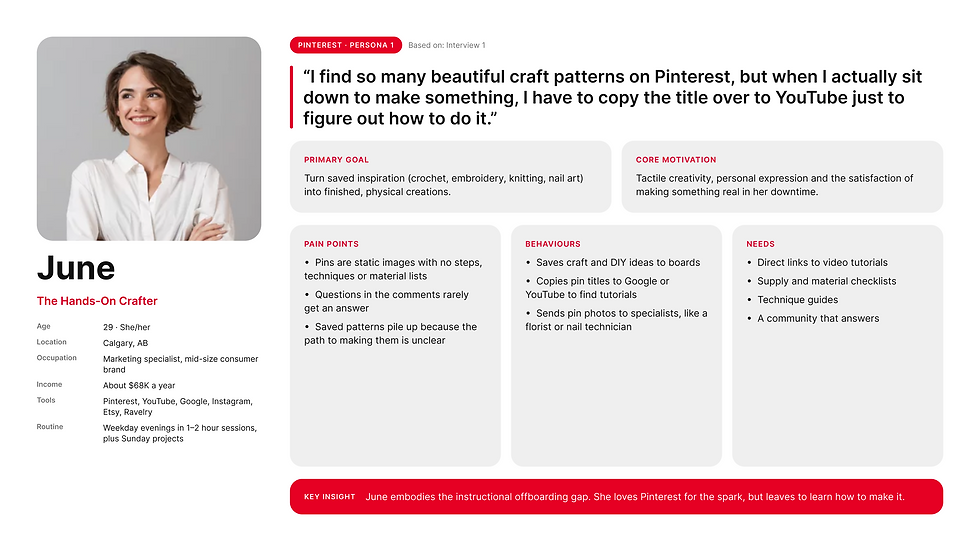
June, the hands-on crafter. 29, Calgary, marketing specialist. "I find so many beautiful craft patterns on Pinterest, but when I actually sit down to make something, I have to copy the title over to YouTube just to figure out how to do it."
From her interview: "Better time management resources for longer projects would be super helpful." (Participant 1)
INFORMATION ARCHITECTURE

USER FLOW
Task 1: Board to deck. From a client board in the Freelance account, Claire starts a client project, adds the client, brief and deliverables, and finds more references. They group the Pins into themes with an insight for each, pick a deck template, then reorder, add or delete slides. Pinterest generates the deck.
Task 2: Share to approval. Claire fixes anything the pre-share check flags (low resolution, missing credit) and shares one link that works without a Pinterest account. They then read the client's numbered comments, revise slides and mark the deck approved, which files it under the client in Client projects.

INTERACTION DESIGN
I defined eight interaction principles. Each one maps to a specific part of the prototype.
Visibility of status. A "Waiting on approval" chip, "Nora opened the link 3 times" and an open-comment count show where the deck stands.
Error prevention. The pre-share check flags a low-resolution image and a missing credit before the client sees them.
Feedback you can take back. Deleting a slide shows a toast with Undo. Reordering moves the selection with the slide.
Recognition over recall. The deck outline shows a thumbnail of every slide, so Claire reorders by sight, not by title.
Constraints that explain themselves. Project plan is visible but marked "Later", so the scope is clear without a dead end.
Direct manipulation. Direct manipulation. Slides can be dragged in the outline and the editor, with a keyboard and Move-button fallback.
Consistency. Every screen uses Gestalt type, spacing, radius and button sizes, with one page header and one scrollbar.
Accessible by default. Light and dark modes pass contrast checks. Every control and dialog is labelled for screen readers. Tap targets meet the 24px minimum, and statuses use shape and words as well as colour.
WIREFRAMES
I wireframed 9 desktop and 9 mobile screens, one for each step of both tasks: client board, project setup, Find more, themes, template, editor with the pre-share check, preview and share, client review, and Client projects. The wireframes settled the layout before any colour. On desktop the work sits on the left and a side panel on the right; on mobile the panel becomes a sheet.

Desktop Wireframes:
Mobile Wireframes:
HIGH-FIDELITY DESIGN
The final design has 18 screens, 9 desktop and 9 mobile, built on Pinterest's Gestalt system in light and dark mode. The deck itself uses Stillwater's own palette and type, so the product chrome and the client's brand never compete.
High-Fidelity Desktop Designs:
High-Fidelity Mobile Designs:
TEST PROTOTYPE
Round 1. Two of three testers generated the deck, then hunted for a way to change the slide order. The pre-share check sat in a side panel that stayed stuck to the screen, so the deck covered it on smaller laptops. Two testers misread the small numbered dots on client comments.
"I want to fix the order before it builds anything." (Round 1, brand designer)
Round 2. All three finished Task 1. In Task 2, two of three chose "Share anyway" at "2 issues still open" because they couldn't find the issues. Mobile testers wanted to move slides without dragging. One was thrown by the setup header and two scrollbars.
Round 3. All three finished both tasks. The main feedback was about polish:
the red pulse felt "like an error"
the rail buttons looked heavy
on a phone, the pre-share check was hard to act on
there was no quick way out of Find more
the project labels didn't say where work stood
ITERATE & RE-TEST
After three rounds, I prioritised the changes by how often testers got stuck and how close each problem was to the pitch deadline. Fixes that blocked a task came first, then device fit, then polish.
BEFORE AND AFTER
01 · Reorder before the deck is built. Change "with drag, arrows, and delete" to: "The template step's outline shows slide thumbnails. Drag a slide to reorder it, or tab to its handle and use the arrow keys." The up and down arrow buttons are gone.

02 · From small, hard-to-read comment dots, to 26px numbers that read in light and dark mode.

03 · Review issues, not Share anyway. No copy change. The after image now shows the issues lifting into view, so before and after no longer look the same.

04 · Rename to "Move, swipe and hold to reorder on mobile". Suggested copy: "Earlier and Later became one action row, Move ‹ ›, add and delete, under the slide. Testers can also swipe the slide to change slides, or press and hold a tile in the strip to drag it. The buttons stay for anyone who would rather not drag."

05 · From a one-off setup header, to the same header as every other step.

06 · From heavy rail controls, to small matching × and + buttons with a full-size tap area.
07 · A clearer pre-share check on mobile. Before: small bordered cards with text buttons. After: each issue shows its slide preview, a clear title and two full-width buttons, Swap image or Add credit and Ignore.

18 · Statuses that say where work stands. Before: "Just filed", "Delivered" and "Won" chips. After: three Gestalt-style states, Approved, Submitted and In progress. Each one pairs an outlined icon with its word, so meaning never depends on colour.

09 · Drag to reorder, keys as a backup. Before: a grip that only worked with a mouse, plus up and down arrows on every row. After: the row lifts and the others slide aside. This works with a mouse, with touch on the handle and with the arrow keys.

10 · Continue from Find more. Before: the only way out of Find more was to keep adding Pins or close the sheet. After: a pinned Continue button with a running count ("25 references · 1 added") goes straight to Themes.

WHAT I LEARNED
Order is a decision, not a detail. Moving reorder before the build fixed the most common stall.
A warning nobody can find gets ignored. "2 issues still open" only worked once it led people to the issues.
Calm beats loud. A quiet lift did the red pulse's job without reading as an error.
Mobile needs its own path. Testers reached for swipe and the Move buttons before drag.
Consistency is a usability fix. One header, one scrollbar and one set of button sizes removed confusion testers couldn't name.
FROM WIREFRAME TO FINAL
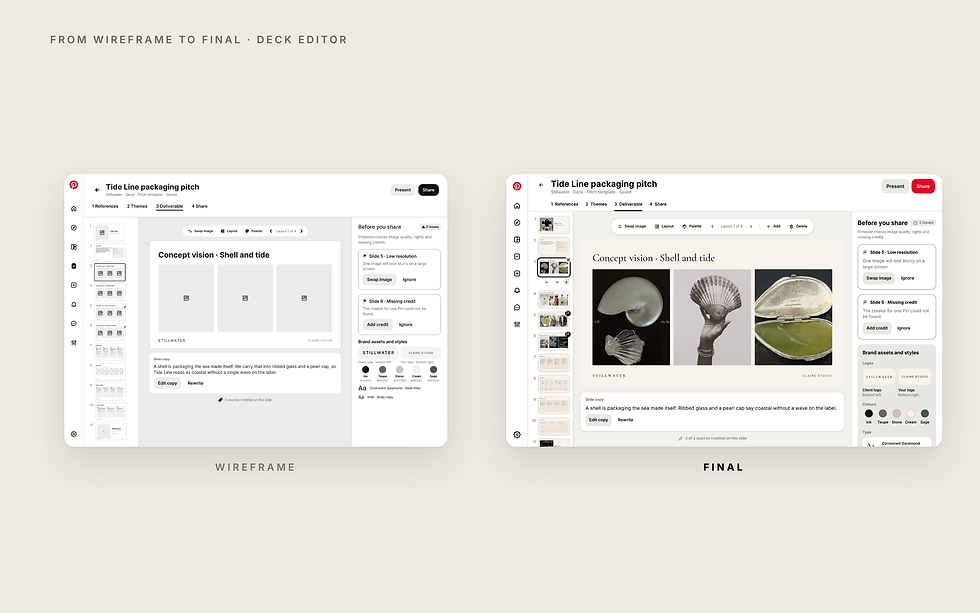
The core idea held: a board becomes a project, then a client-approved deck at one link.

What changed:
One long page became four steps with tabs.
Reordering moved to before the deck is generated.
Slides can be added and deleted at every stage, with Undo.
The pre-share check grew into a checklist that points to each issue.
Comments gained numbers that match the pins on the slides.
Mobile got its own patterns: swipe between slides, a numbered strip, one action row and bottom sheets.
VISUAL DESIGN
I started from a moodboard of the Stillwater references: pearl, ribbed glass, stone and sage.

That palette went into the client's deck, while the product itself follows Pinterest's Gestalt system, so Claire's tools never compete with the client's brand. The style guide below covers colour, type and buttons, in light and dark mode.


Comments