
Pinterest Case Study: PIN-TO-PROJECT

Pinterest is where people collect what they want to make. Then they leave to make it. Instead of adding more media to the feed, like long-form video, I designed a hub that gathers everything a project needs in one place. People keep their resources there, check in as they work over time, and share the finished piece with their community.
Services: UX Research, UX/UI Design, Interaction Design, Prototyping
Role: Sole designer · BrainStation, 2026 · Concept, not affiliated with Pinterest
THE PROBLEM
People save hundreds of pins they never act on. When they sit down to make something, the pieces are scattered: the pattern on Pinterest, the tutorial on YouTube, the materials list in a notes app. Pinterest holds the idea but none of the doing, so the project loses momentum and rarely gets finished, or gets finished off the app.

THE PROBLEM SPACE
The obvious fix is more content: longer videos, more tutorials, more to scroll. But the people I spoke with didn't need more inspiration. They needed one place to keep what they'd already found, and a reason to come back. Pinterest is also a quiet place to dream, so the hub had to feel calm. No deadlines, no overdue badges, no pressure.
How might we give makers one home on Pinterest
to gather their resources, track their progress over time,
and celebrate the finished piece with their community?
THE PROTOTYPE
Meet June.
She's making embroidered botanical stamps. She taps Make this on a pin, and Pinterest builds her a project hub: the source pin, suggested steps, materials, dates and gentle check-ins, all in one place. She comes back to it over two weeks, shares progress with friends, and marks it "Made it" to celebrate the finished piece with her community.

RESEARCH
I interviewed four Pinterest users who save ideas to make. I asked how they go from a saved pin to a finished thing, and where it breaks down. When they asked for more, it wasn't a new format. It was structure, links to the sources they already use, and people to share with.
4 of 4 described a gap between saving an idea and making it.
3 of 4 leave Pinterest to finish the work, so their resources end up spread across YouTube, Google and other tools.
3 of 4 asked for planning, time management or organization help.
"I would love a creative software or hub that could take me from idea, to brief, proposal, contract, invoice, to project plan, to project check-ins, finished work, and documentation / distribution at the end." (Participant 2)
INSIGHTS
Resources are scattered, not missing. The tutorials and patterns already exist. People just have to leave Pinterest to find them, and 2 of 4 struggle to find what they saved. They need one place that holds what they've already found. "I will see the inspiration on Pinterest, take the title and then Google 'How to make ____' to find instructions." (Participant 1)
Making happens over time. Saved ideas pile up and progress stays sporadic. People want help planning and a reason to come back, but 2 of 4 also called Pinterest a place to unwind, so it has to stay calm. "I would love for it to help me plan my projects so that I can do more of what I love in a manageable way." (Participant 2)
Finished work has nowhere to go. Pinterest is built for collecting, not for showing what you made. Without a place to share, there's no moment to celebrate and no community around the work. "I think the biggest thing is that the sense of community on Pinterest is missing." (Participant 1)
PERSONAS
Three people shaped the work. June is who I designed for first.
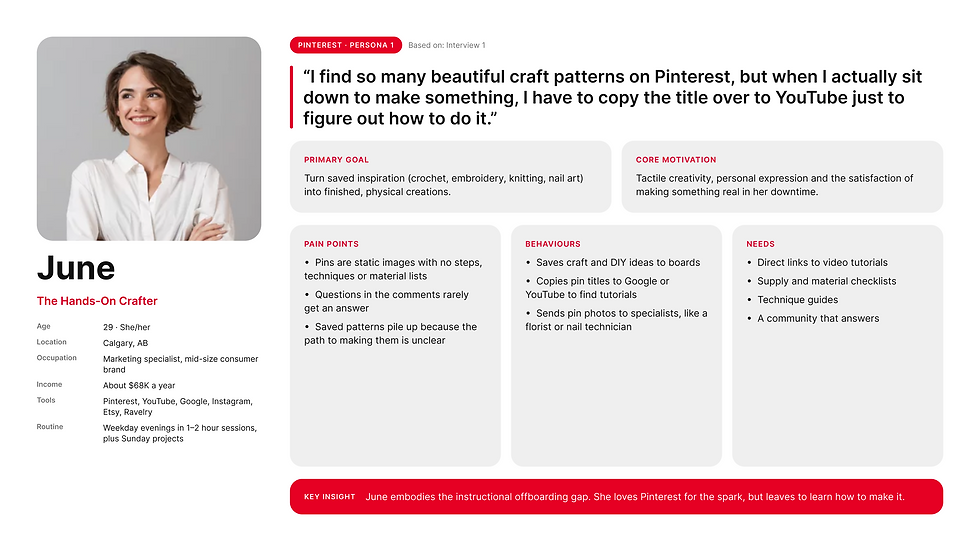
June, the hands-on crafter. 29, Calgary, marketing specialist. "I find so many beautiful craft patterns on Pinterest, but when I actually sit down to make something, I have to copy the title over to YouTube just to figure out how to do it."
From her interview: "Better time management resources for longer projects would be super helpful." (Participant 1)
Claire, the visual strategist. 34, Montréal, freelance visual strategist, they/them. "Pinterest is my go-to research library for setting visual direction, but exporting every image one by one into external deck software takes way more time than it should."
From their interview: "Also better tracking of the source of images." (Participant 3)

Sean, the lifestyle curator. 31, Toronto, content strategist. "Pinterest is my quiet sanctuary to dream about my ideal home and style, but when I actually try to turn an inspiration board into a plan, I get stuck on where to start."
From her interview: "I have so many saved knitting patterns and honestly actually making something is very sporadic and not very clear." (Participant 2)

INFORMATION ARCHITECTURE
Projects live in Saved, next to Boards and Collages, so the hub feels like part of Pinterest and not a new app. A project can start from a pin, a board, the Create menu, the home feed or a notification. Inside the hub, projects sort into In progress, Want to make, Paused and Made it.
I kept the language soft on purpose.
Next step, not Task. Pick up where you left off, not Overdue. Made it, not Complete.

USER FLOW
June's flow has seven stages: find a pin, tap Make this, review the suggested steps, set dates, work through the steps, share progress and mark it Made it. A second flow follows Claire, who turns a board into a client deck.


SKETCHES
I started on paper to test where projects should live and how much structure felt right. Sketching fast let me try several entry points and project layouts before committing to one.
WIREFRAMES
I wireframed 8 desktop and 12 mobile screens, built from a small kit of reusable parts. The wireframes set the order of the flow and the layout of the project page before any colour came in.

Desktop Wireframes:
Mobile Wireframes:
HIGH-FIDELITY DESIGN
In Figma, I matched Pinterest's own design system, Gestalt: its 4px spacing scale, button sizes, rounding, type and colour tokens. The goal was a feature that could ship tomorrow, not a redesign.
20 screens, desktop and mobile, from the home feed to Made it.
High-Fidelity Desktop Designs:
High-Fidelity Mobile Designs:
INTERACTION DESIGN
The details carry the calm. I designed every interaction so June always knows where she is, what she can do next, and that nothing she does has to be permanent.
Start from a Pin, never a blank page. An empty cover is a dead end, so I turned it into a signifier. A Choose a Pin button sits on the placeholder, and the first action becomes the obvious one. Picking a Pin fills in the title, cover and suggested steps, which shifts the work from recall to recognition.
Progress you can move. The roadmap uses direct manipulation. June drags a step card between To start, In progress and Complete, and the column outlines to show where it can land. The same moves live in a ⋯ menu, so keyboard and touch users get an equal path.
Constraints that explain themselves. Real making overlaps, so several steps can be in progress at once. Completion is constrained to order, so the plan stays true. When a move isn't allowed, the column outlines in red and the reason appears in plain words, right when it matters. The constraint teaches the model instead of hiding it.
Prevent the error, soften the stop. Mark done appears only on the next step, and Complete project can't be finished by accident. Instead of a hard error, a gentle message says how many steps are left and that the project is already saved as in progress. The red signals stop and read. The words keep it kind.
Visible status, soft language. The system always shows where June stands, but never as falling behind. "Next step · 2 of 5 done", not a percentage bar. Paused, not overdue. Made it, not complete.
Feedback you can take back. Mark done, moves, saves and date changes each confirm with a toast and an Undo. Immediate, reversible feedback makes exploring feel safe.
Borrowed on purpose. Hover washes, a 97% press, sticky action bars and delayed tooltips follow pinterest.com. Staying consistent with the host platform keeps the learning curve close to zero.
Accessible by default. Two-ring focus states, alerts that screen readers announce, 44px touch targets, reduced motion respected, and AA contrast in light and dark mode.
The full list of states is below.
VISUAL DESIGN
The mood board set the tone. From there I built a style guide, colour primitives and semantic tokens, type, spacing and elevation, and a component library of buttons, chips, fields, checkboxes, cards and navigation, all in light and dark mode.
THE PROTOTYPE, AGAIN
I built the final prototype in code so every state works for real: hover, scroll, dates, a roadmap June can drag steps across, the finish, and light and dark mode. Follow June's project from a saved pin to a finished piece shared with her community.
[Walkthrough video] [Open the live prototype] [Figma prototype]
Interaction design
Paste the decisions as short paragraphs, then the state list as a two-column grid or an accordion.
Key decisions
No pressure language. Dates are a guide, not a deadline. Nothing turns red just because June falls behind.
Progress June can move. The roadmap works like a board. June drags a step between To start, In progress and Complete, so tracking feels like moving cards on a table, not filling in a form.
Real life, real order. Several steps can be in progress at once, because some craft steps overlap. Steps are still completed in order, so the plan stays honest. If June tries to complete a step early, a message names the step to finish first.
A gentle stop. If June tries to finish the project with steps still open, a calm message with a red accent tells her how many are left and that her project is saved as in progress. Red signals "stop and read" without feeling like a failure. She can't complete it by accident.
Always reversible. Mark done, moves, saves and removals all come with Undo or a way back.
Feels like Pinterest. Hover, press, scroll and tooltips copy pinterest.com, so the feature doesn't feel bolted on.
Accessible by default. Visible focus rings, alerts that screen readers announce, buttons at least 44px tall, and reduced motion respected. Every step can be moved by keyboard and on touch, not only by dragging. All text passes WCAG AA contrast in light and dark mode.
State considerations
Area | States designed |
Pins | Hover wash with board picker, Save, source link, share and more; pressed at 97%; Save and Saved |
Navigation | Selected (filled icon), hover tile, tooltip after a delay, red notification dots |
Focus | Two-ring blue keyboard focus on every control |
Tabs and chips | Selected, unselected, hover; Custom chip when dates don't match a preset |
Buttons | Default, hover, pressed, disabled, loading ("Creating…") |
Forms | Empty, filled, focused, missing-title error |
Loading | Colour placeholders until images load, skeletons, infinite scroll |
Empty | Empty filter results; "Nothing here" in an empty roadmap column |
Scroll | Sticky close-up action bar; mobile tab and chip bars hide on scroll; position restored on back |
Calendar | Pick start, pick end, range, month arrows, change logged in Activity |
Check-ins | Weekly day picker, selected days |
Roadmap | Step cards in To start, In progress or Complete; dragging; drop allowed (outlined) or blocked (red outline with a message); move menu with available and unavailable moves and the reason; several steps in progress at once |
Steps | Done, in progress, to start; expanded and collapsed; Mark done on the next step only; Start this step; Mark not done on the latest done step; Undo |
Completion | Gentle early-complete message with a red accent, Keep it in progress, "Saved as in progress" toast, Made it celebration |
Photo detail | Lightbox with arrows and dots |
Social | Follow and Following; comment like and reply; share menu |
Feedback | Toasts with Undo on save, done, moves and date changes |
Errors | Failed comment with Retry when offline |
Theme and motion | Light, dark (all text at WCAG AA contrast), reduced motion |

Comments